 Anthropic
SEPIA CRM · FOR CLIENT BUSINESSES
Win clients. Keep them coming back.
Book it. Sign it.
Get paid. Follow up.
Sepia brings your calls, texts, bookings, payments and work together, with AI that helps move each client to the next step.
MODEL CHOICE. BUSINESS CONTEXT.
Your choice of models.
Your business context.
Work with Claude, ChatGPT, Gemini, Grok and Meta in chat. Your clients and work stay in context.
Anthropic
ChatGPT
 Google
Gemini
 SpaceXAI
Grok
 Meta
MetaMeta
Choose a model in Chat. Review proposed actions before they run.
Explore the intelligenceAvailability varies by workspace and task. Provider names and marks identify the models; they do not imply endorsement.
START WITH ONE THING
What would help
your business today?
Pick a job. See the first step. Add the rest when you need it.
Give clients a link to book.
Let people choose an available time, pay a deposit and manage their appointment.
See booking pagesYOUR FIRST STEP
Create a booking page. Add your service and hours, then share the link.
Your next booking arrives on the calendar and the client record.Start freeMADE FOR YOUR KIND OF BUSINESS
Pick your business.
Start with its setup.
Each workspace starts with the pages that business uses. You can change them any time.
Appointments
Book clients, collect deposits, send reminders, and keep every appointment tied to the client record.
For salons, barbers, tattoo, med spa, trainers.See Appointments- A booking page with deposits, reminders, reschedule links and a waitlist.
- Waivers and agreements signed online, with payment right after signing.
- Reminder and follow-up texts from your own number, to the same client list.
SEE IT IN PRACTICE
Ask. Review. Move forward.
A briefing, a draft or the next appointment. See the work in Chat and the workspace.

Start with what needs you.
Ask about your day, a client or the money coming in. Get a clear answer, with the relevant records and next steps together in the conversation.
Explore ChatSTART WITH A CONVERSATION
The work you need.
Right there in Chat.
Pick a task to see an example request and the result. Review supported changes before confirming them.
10 CONNECTED ACTIONS
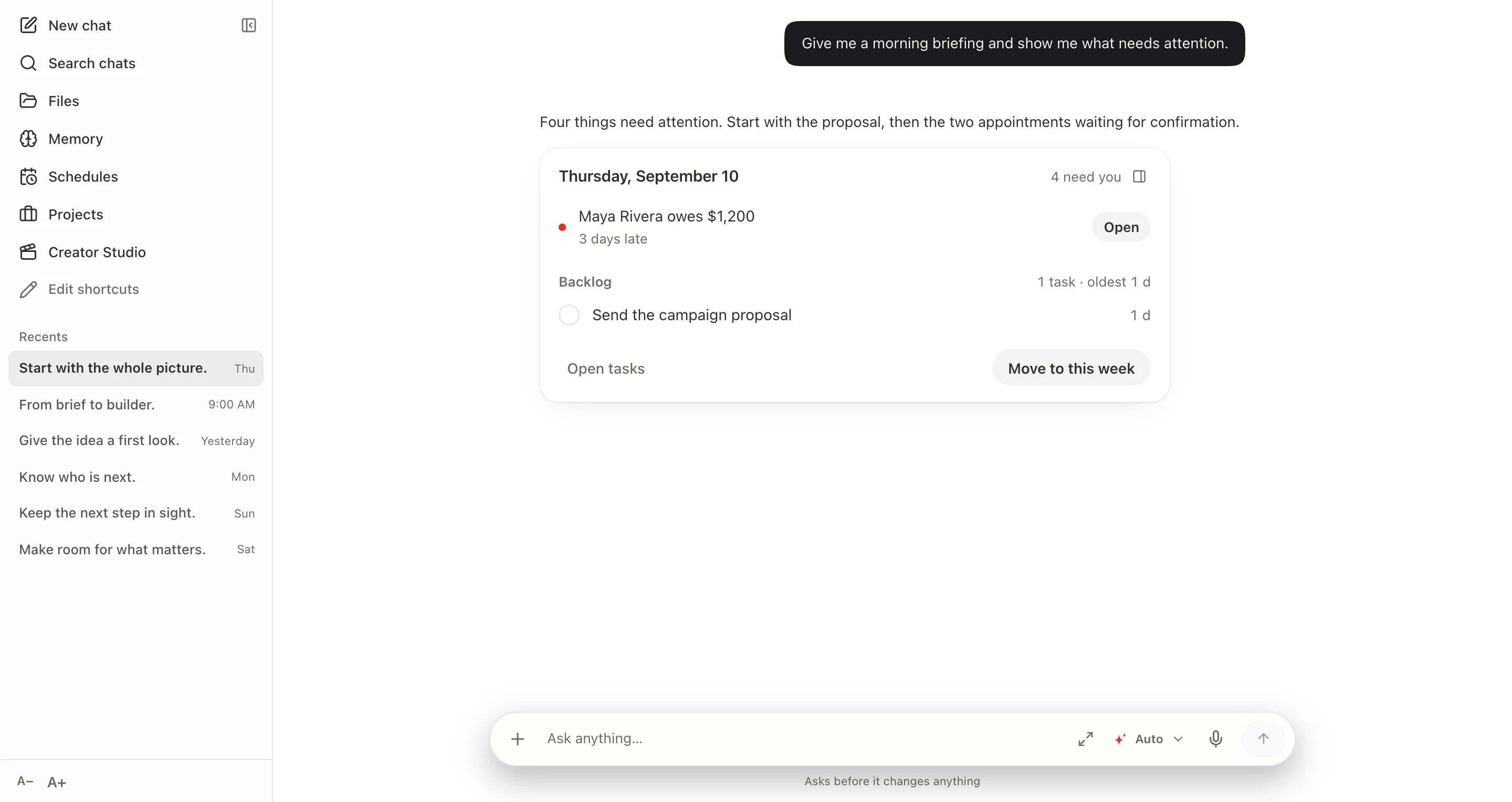
Start with the whole picture.

Research & context
Appointments, tasks and outstanding invoices brought into one briefing.
Ask Chat
“Give me a morning briefing and show me what needs attention.”
Explore all 10 actions
Search workspace notes, messages and activity. Review recorded-call summaries, sentiment and next steps alongside your daily briefing.
- Get a workspace overview
- Filter and compare records
- Search notes, messages and activity
- Review call summaries
- Get a daily briefing
- Find people to follow up with
- See what needs you today
- Review business health
- Remember a workspace preference
- Remove a saved memory
Review supported sends and record changes before confirming. Enabled automations run from saved rules. Messaging, recording and call intelligence require setup and usage credits. Builder and AI credit estimates appear before generation.
Explore ChatTHE AI RECEPTIONIST
When you
can’t pick up.
It answers your business number, asks what the caller needs, then books them in or takes a message. Every call starts the same way: it says it’s an AI and that the call is recorded.
- 01
Answers
Always, after hours, or only when nobody else picks up. You choose.
- 02
Asks what they need
Who is calling, what it’s about and when suits them.
- 03
Books or takes a message
Across the live booking pages you select. It can also reschedule or cancel a caller’s appointment.
- 04
Writes it up
The summary and the recording land on the client’s record.
MAKE ROOM FOR YOUR BUSINESS
Start with the
work you have.
- 01
Create your workspace.
Give it a name and choose how you work.
- 02
Bring in your contacts.
Start with the people and details you need today.
- 03
Take the next step.
Plan the call, prepare the task, or open the project.
A FEW PRACTICAL THINGS
Before you
get started.
Do I need to set everything up?
No. Choose your business and start with one job. Add contacts, pages and connections as you need them.
Can my team use it too?
Yes. Share client records and work, with access controlled by roles. CRM plans scale capacity and usage, not access to core CRM modules.
What does the AI do on its own?
Chat prepares supported changes and messages for your review. You confirm them. Enabled automations run from rules you have saved.
What costs extra?
Calling, messaging and AI use usage credits or provider charges. Payments go to your own Stripe account. Meta bills your ad spend. See pricing for the details.
SEPIA CRM
Book it. Sign it.
Get paid. Follow up.
Bookings, contracts, invoices, texts and calls on one client record, paid straight to your Stripe.
Start free